Adding & Removing Locations in GMBapi.com

Manage growing portfolios without manual imports. This guide explains how to add new locations, organise them across clients, and remove or disconnect profiles, based on how Google Business Manager syncing works inside GMBapi.com.
Adding & Removing Locations: Step-by-step
1. Understand how syncing works
GMBapi.com syncs location groups from Google Business Manager (GBM). If a location is added or removed inside a connected GBM group, GMBapi.com will reflect the change on the next sync (every 24 hours).
2. Add locations automatically (best for ongoing growth)
If you add a new location to a GBM location group that’s already connected to GMBapi.com, it will be pulled into your dashboard automatically during the next 24-hour sync.
3. Add locations by giving access to your GMBapi.com Google email
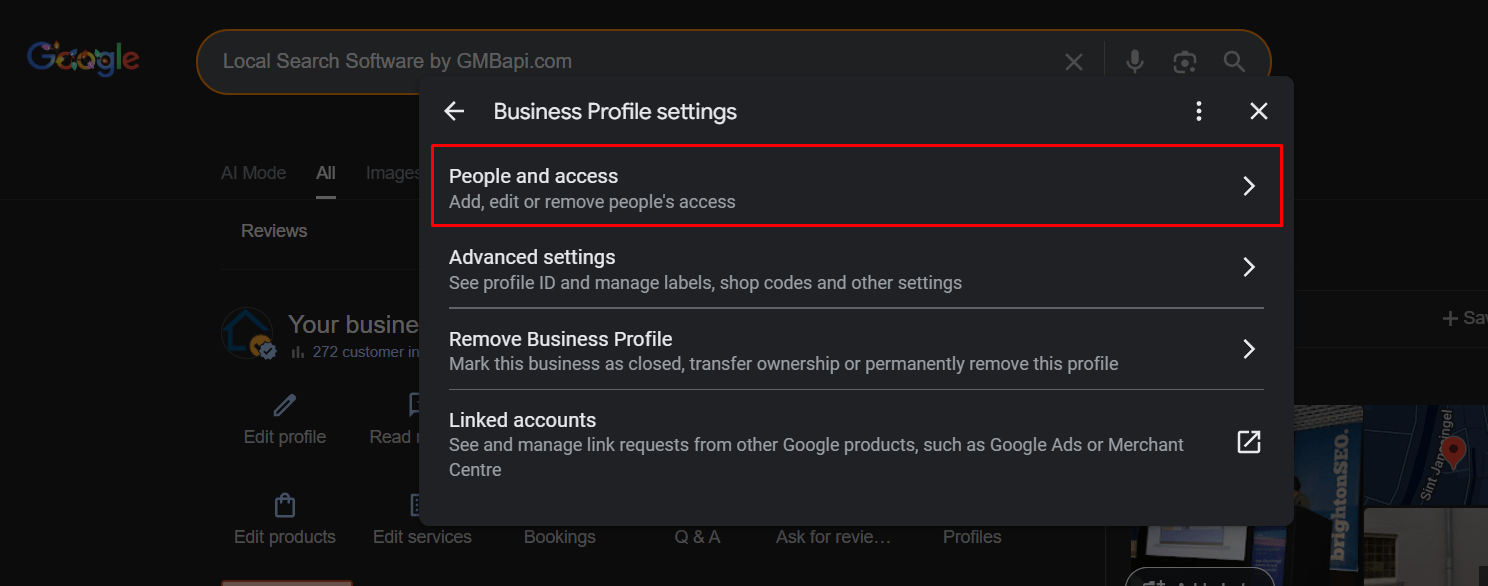
If the locations are owned by someone else, ask the GBP/GBM owner to add the same email used to create your GMBapi.com account as a Manager or Owner on the location (or the full location group) inside Google Business Manager. GMBapi.com will pull the locations in on the next sync.
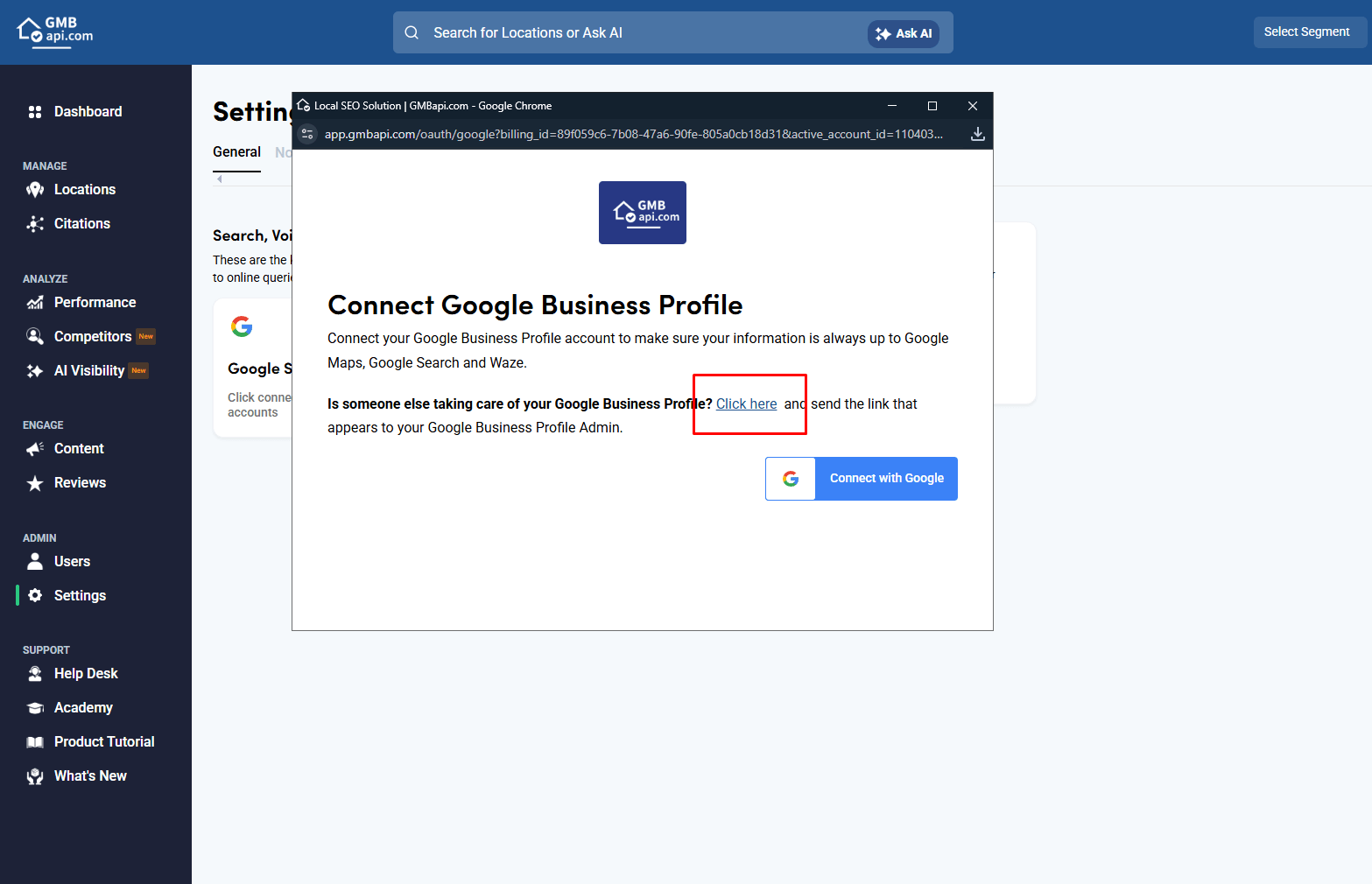
4. Add locations using your “Connect” link (ideal for new clients)
Use a shareable link so the location-group owner can connect their group themselves:
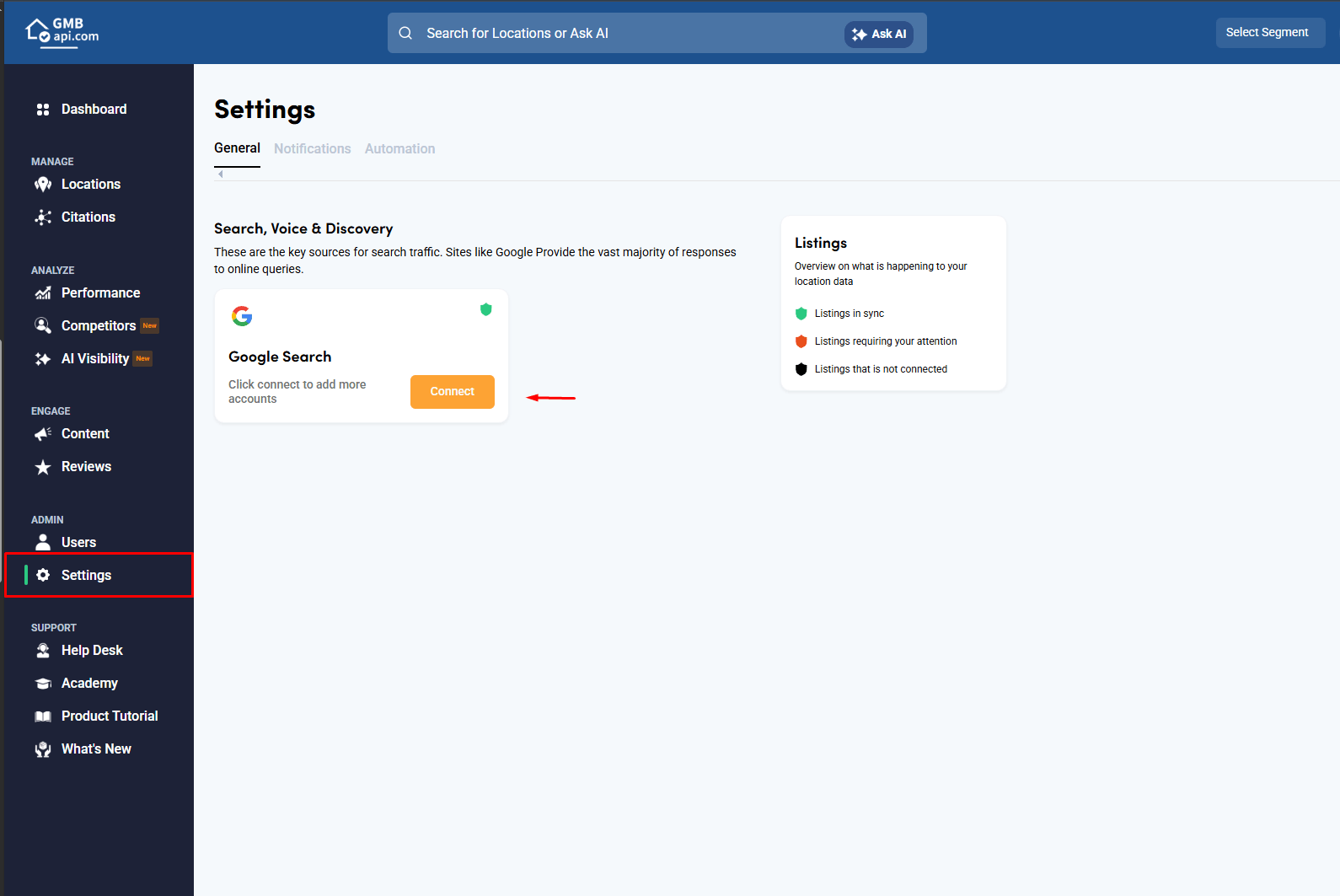
- Go to Settings
- Open the General tab
- Click Connect
- In the pop-up, click “Click Here” to copy your personal Connect link
- Share the link with the GBM owner and ask them to connect their location group
Once they approve it, the new location group will appear in GMBapi.com, and you can switch between groups using the bottom-left selector in the app.
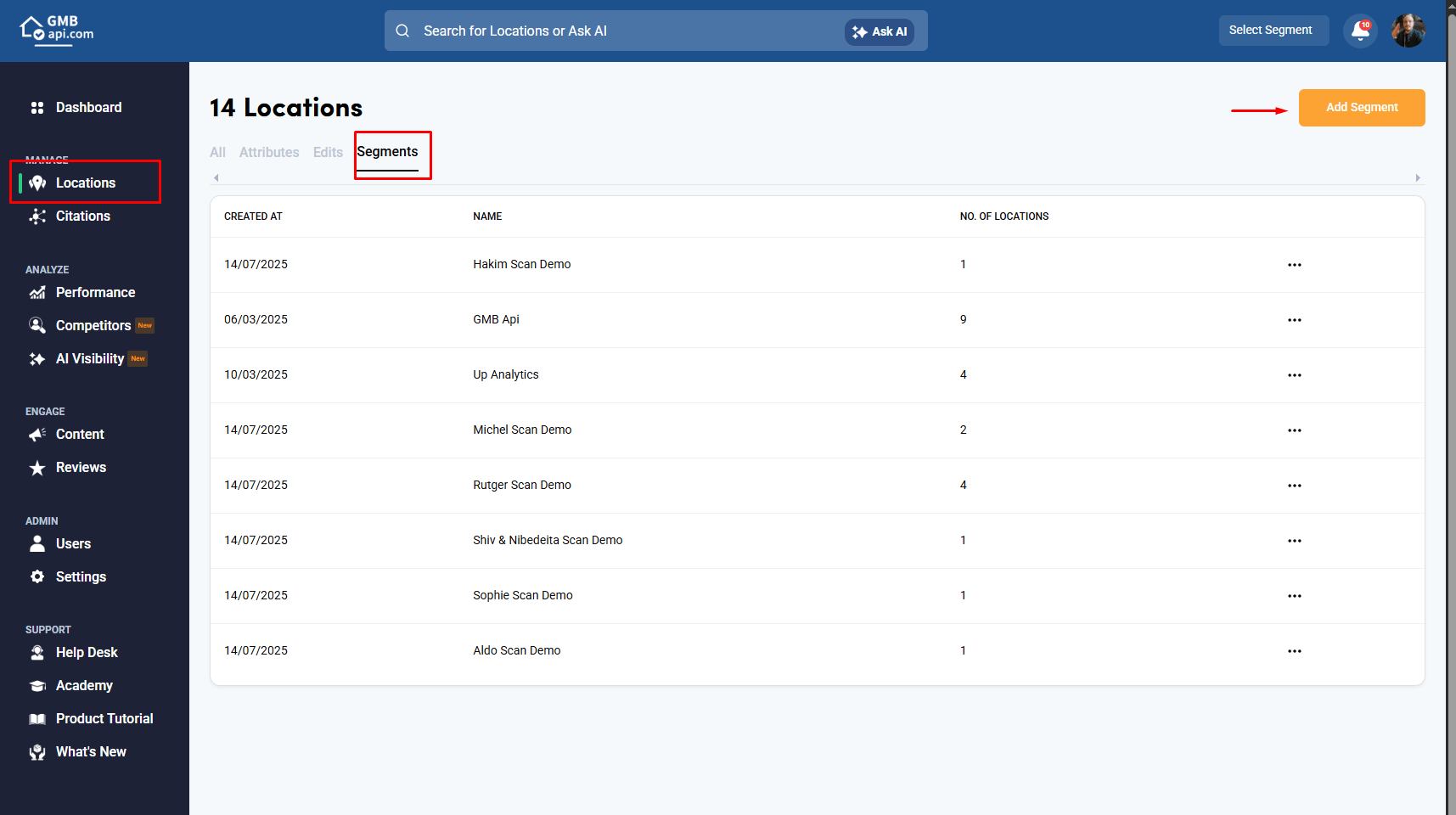
5. Organise new clients and portfolios
You can organise new clients/locations in two ways:
Option A: One location group + Segments
Keep all locations in one connected group and use segments to group by client, region, service type, franchises, etc.
Option B: Separate location groups per client
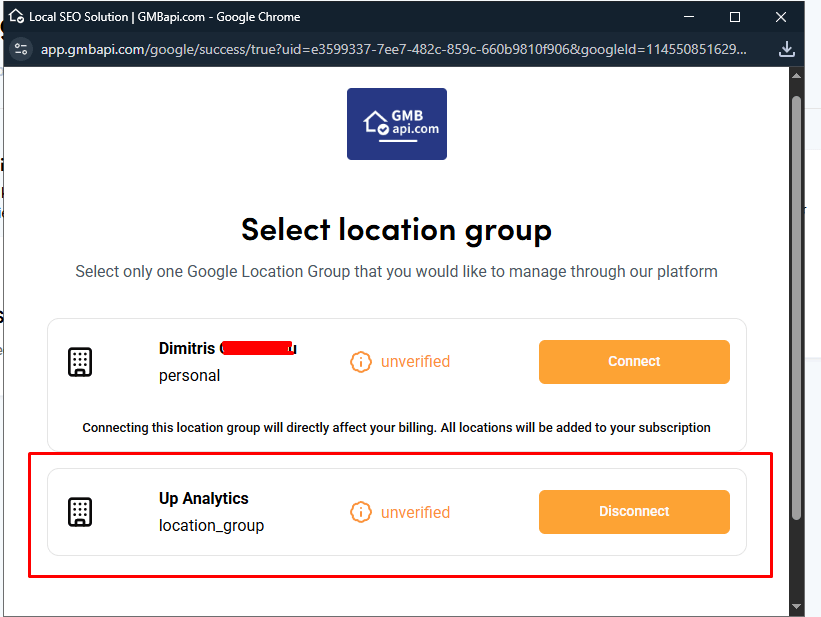
Split portfolios into separate GBM location groups, connect each one via Settings → General → Connect, then switch between them using the bottom-left selector.
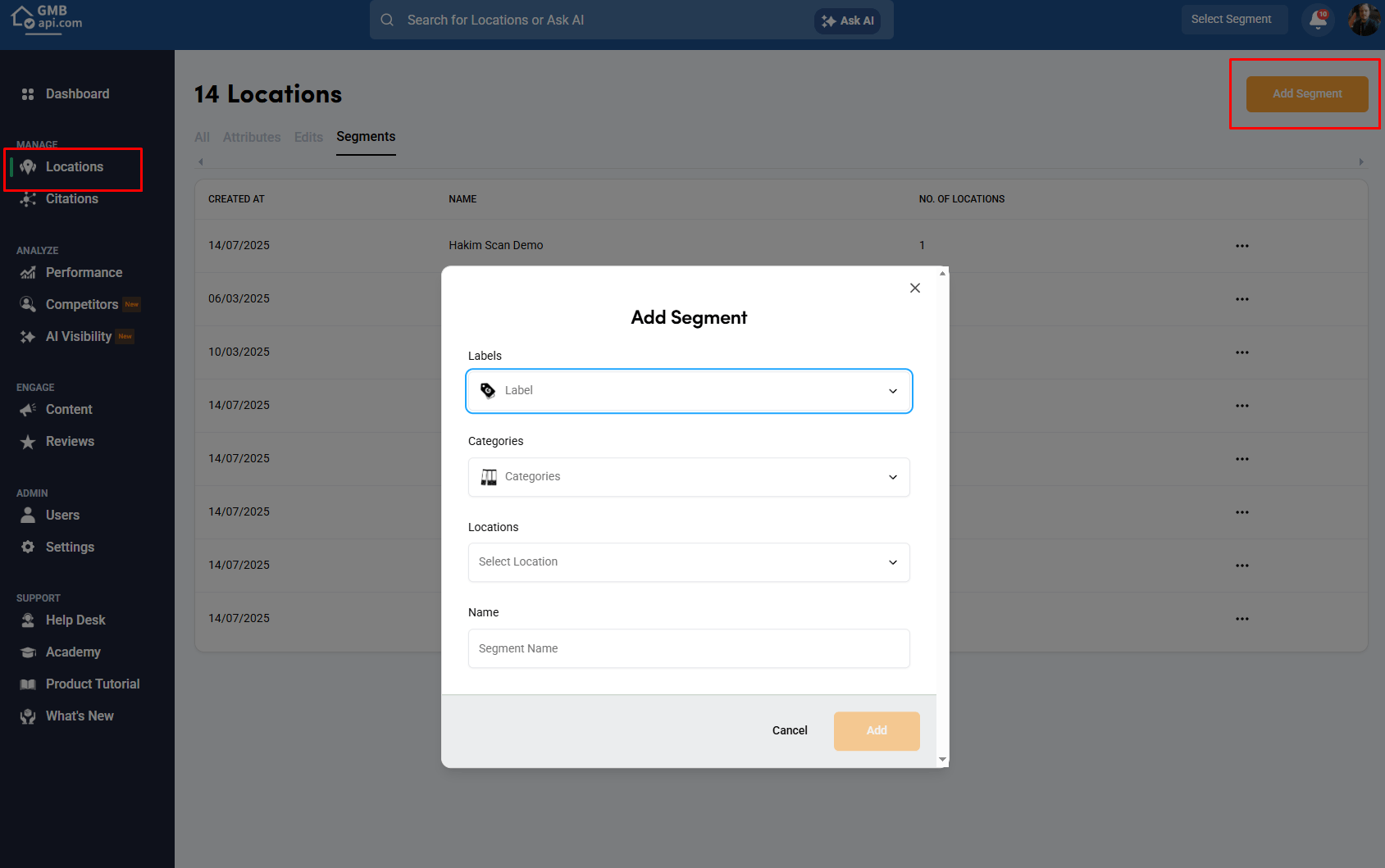
Choose A if you want one “master” workspace.
Choose B if you want hard separation between clients/brands.
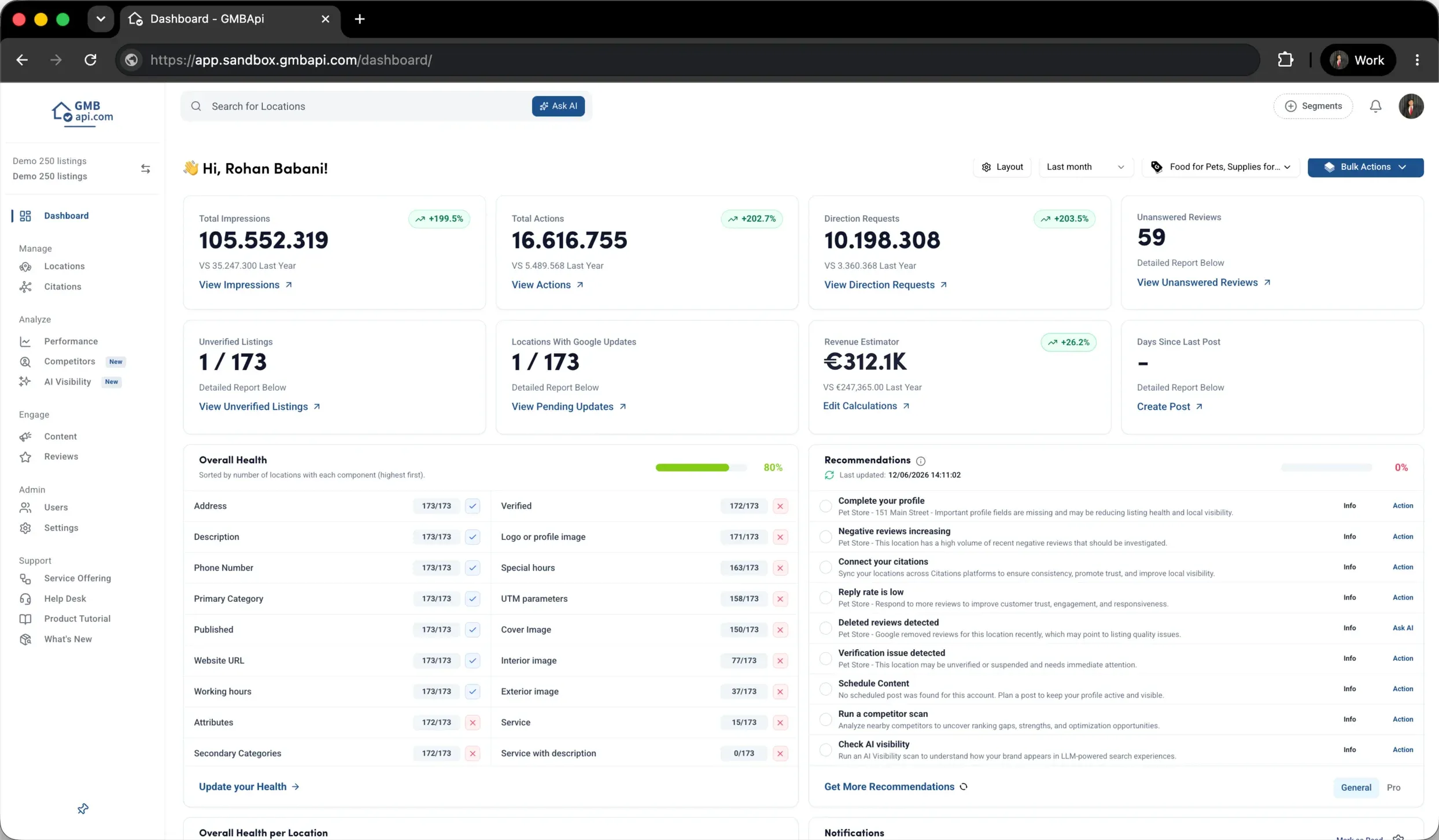
6. Remove a single location (must be done in Google Business Manager)
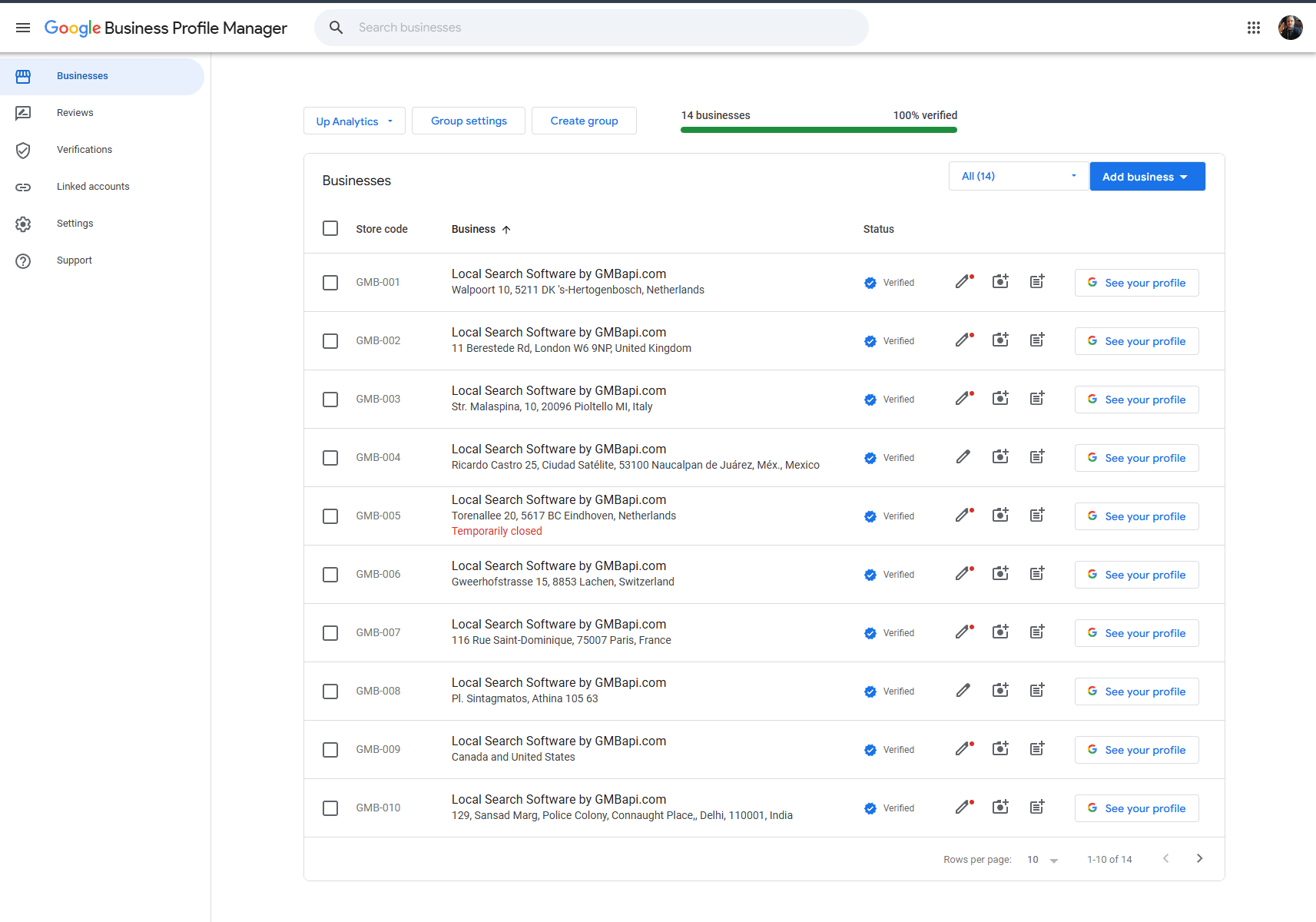
GMBapi.com can’t remove an individual location directly. To remove one location from your dashboard, the GBM owner must remove it from the location group in Google Business Manager. GMBapi.com will reflect the change after the next 24-hour sync.
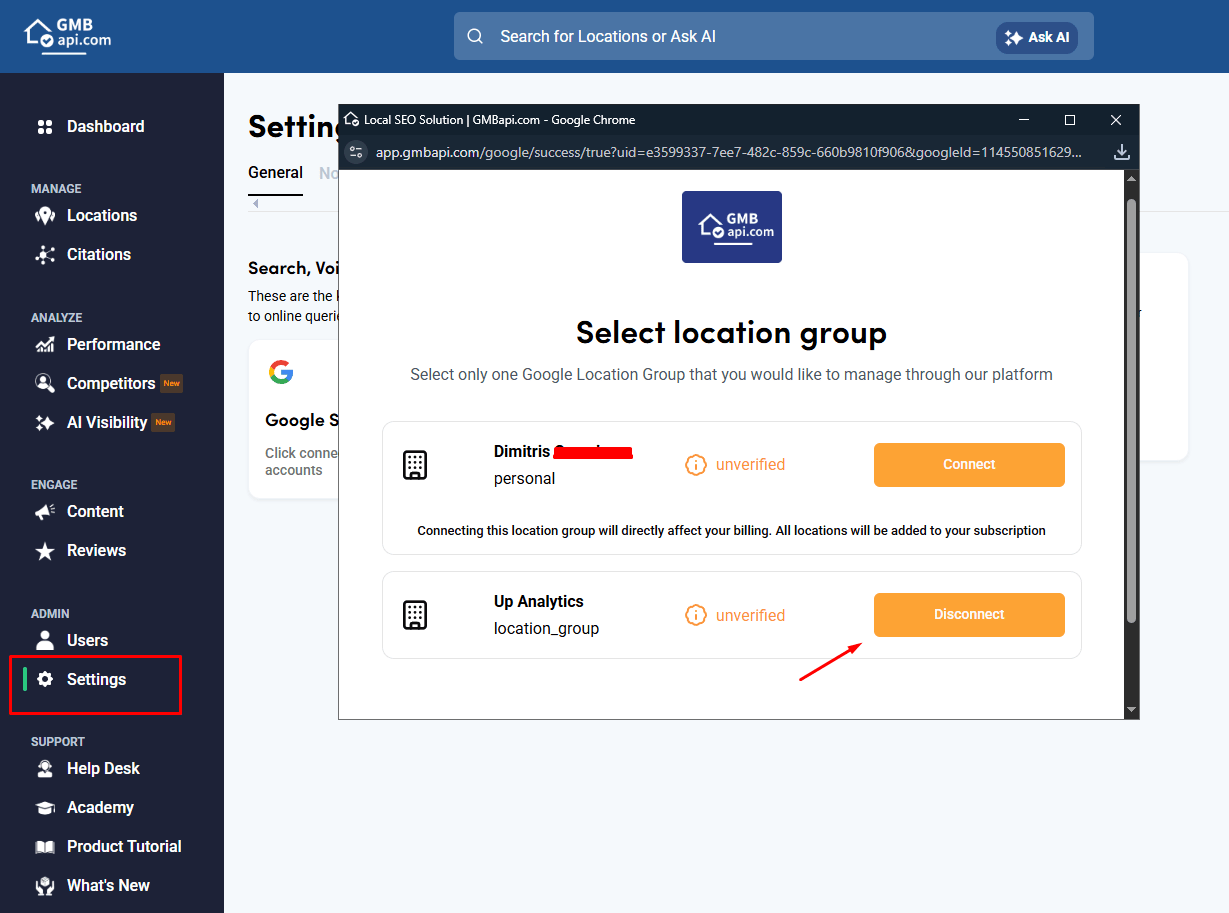
7. Disconnect an entire location group (done inside GMBapi.com)
To remove a full group from your GMBapi.com account:
Go to Settings → General → Connect, select the synced location group, and choose Disconnect.
8. Creating, closing, or deleting Google Business Profiles
Creating, closing, or deleting GBPs must be done directly in Google Business Manager (Google’s API limitations prevent third-party tools from doing this). After changes are made in Google, GMBapi.com updates on the next sync.