 Sophie Noble
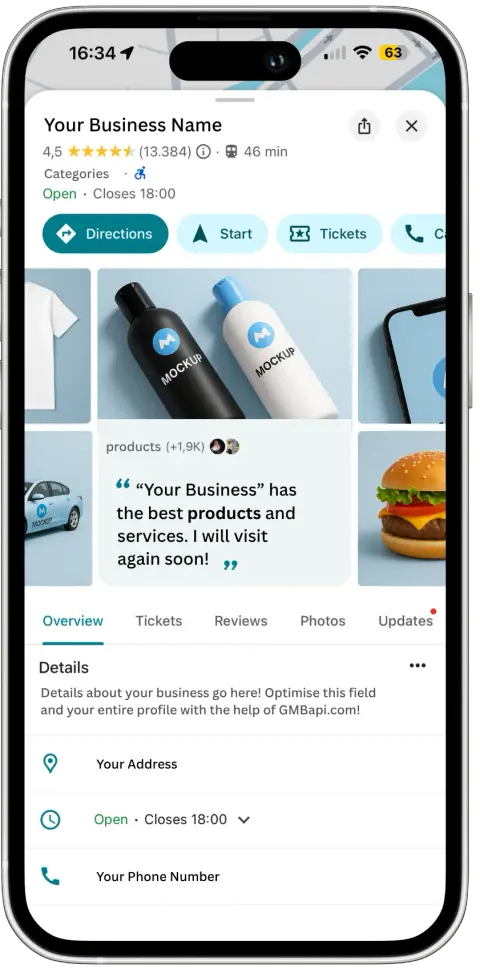
Claiming your business on Google is key to controlling your online presence and ensuring that potential customers find accurate info about your business. By doing so, you get access to Google Business Profiles, where you can manage your listing, interact with customers, and showcase your products or services.
This guide will walk you through the process of claiming your business on Google, helping you boost your visibility on Google Search and Maps. Whether you’re a small local business or a large enterprise, claiming your business is essential for building credibility, attracting customers, and expanding your online reach.
How to Claim a Google Business Listing
Claiming a business on Google involves verifying that you’re the rightful owner or authorised representative of the business. Here’s a step-by-step guide on how to claim your business on Google:
Step 1: Visit Google My Business
Start by navigating to the Google Business website and sign in with your Google account. If you don’t have a Google account, you’ll need to create one.
Step 2: Search for your business
Use the search bar to find your business. If your business appears in the search results, it means it’s already listed on Google. Select your business from the options.
Step 3: Click on "Claim this business" or "Request Access?"
Look for the option to claim the business. It’s usually labelled as “Claim this business” or “Request Access?” Click on it to start the claiming process.
Step 4: Verify your identity
Google will prompt you to verify your identity as the owner or authorised representative of the business. This may involve providing information such as your business email, phone number, or other details.
Step 5: Choose verification method
Select a verification method from the options provided by Google. Common verification methods include receiving a phone call, video verification, or email verification.
Step 6: Complete Verification
Follow the instructions provided by Google to complete the verification process. Depending on the chosen method, you may need to enter a verification code sent to you via phone or email.
What to Do If Some Else Owns the Business Listing?
If you find that someone else has already claimed the listing for your business, don’t worry—there’s a process for that too:
- Request Access: If the listing is already managed by someone else, you’ll see an option to request ownership. Click on it to begin the process of requesting control of the listing.
- Submit Your Request: Google will notify the current owner of your request via email. They have seven days to respond. If they approve, ownership will be transferred to you. If they deny or ignore your request, you may still have options.
- Follow Up:
- Denied Request: If the current owner denies your request, you may need to contact them directly to resolve the issue.
- Google typically doesn’t mediate these disputes.
- Ignored Request: If your request is ignored, Google may provide alternative ways for you to verify your connection to the business, such as submitting additional documentation.
- Contact Google Support: If you’re unable to claim the listing after following these steps, you can reach out to Google Support for further assistance. Be ready to provide proof of ownership, such as business licenses or utility bills.
By following these steps, you can navigate the process of claiming a business listing that’s already under someone else’s control, ensuring that you maintain authority over your business’s online presence.
Step 7: Access your business profile
Once your business is successfully claimed and verified, you’ll gain access to your Google My Business dashboard. Here, you can manage your business information, respond to reviews, and interact with customers.
Step 8: Review and update information
Take the time to review and update your business information, ensuring that it’s accurate and up-to-date. Add details such as your business name, address, phone number, website URL, and business hours.
Successfully Claim Your Business
By following these steps, you can successfully claim your business on Google and begin managing your business listing to enhance your online presence and attract more customers.
GMBapi - Your Multi-Location Local SEO Solution
Manage your Google listings more effectively with our platform. Enhance your local rankings, refine your reputation management and unlock abundant business opportunities with GMBapi.com. Discover the features of our platform and see why our software shines as the leading solution for harnessing the capabilities of the Google My Business API.