Google Ads Local Campaigns offer an excellent opportunity for local businesses to reach potential customers nearby. Using Google’s extensive network and location-based targeting, your ads can effectively connect with those close to your business and looking for what you offer. However, while this feature can be incredibly beneficial, it also requires careful management – particularly when it comes to controlling location information (such as images) displayed in your ads.
This article will guide you on how to manage merchant photo uploads, control Google’s automated image features, and how to use GMBapi.com software to maintain the integrity of your brand’s visual identity.
Why Image Control Matters in Google Ads Local Campaigns
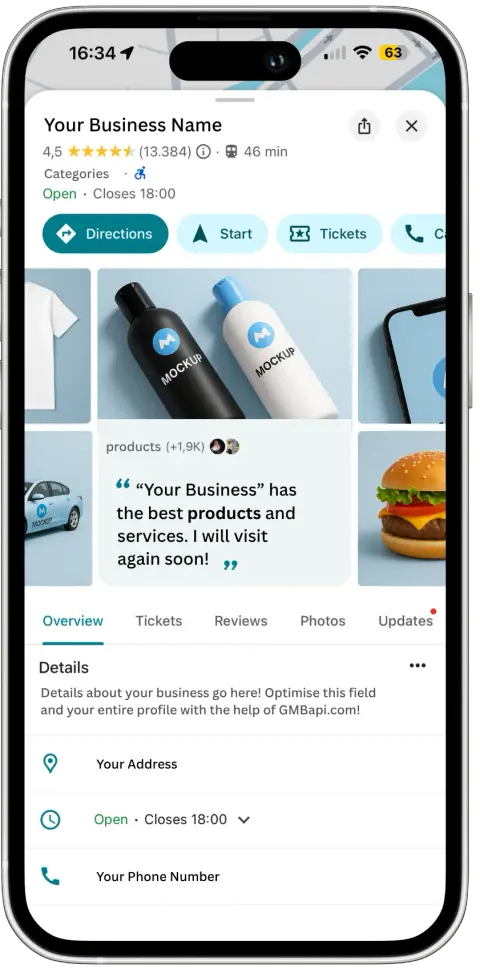
In today’s visually-driven world, the images associated with your business are crucial in making a positive first impression. When running Local Campaigns on Google Ads, the platform can automatically pull merchant images from your Google Business Profile (GMB) listings to use in your ads. While this might seem convenient, it can lead to significant issues if the images selected by Google are outdated, irrelevant, or of poor quality. Even more concerning, these images can be displayed without your explicit consent, which could potentially harm your brand’s reputation.
How Google Uses Merchant Photos in Local Campaigns
Google’s automated systems are designed to streamline advertising, but they don’t always produce the desired results. When you enable automated location extensions in your Google Ads, Google might automatically begin pulling images from your GMB listing to enhance your ads with local relevance and visual appeal. Unfortunately, the images selected by Google might not always align with your brand’s standards.
Imagine an outdated, poorly lit photo of your storefront being displayed in a prime ad spot, or a blurry image of your products appearing in front of potential customers. Or an image of products that do not align with your potential customers’s search query. These scenarios can easily occur if you’re not actively managing the images used in your Google Ads campaign.
How to Control Merchant Photos in Google Ads
To avoid the potential pitfalls of automated image selection, it’s crucial to take control of the images used in your Local Campaigns. Here’s how you can do it:
Upload High-Quality Merchant Photos
The best way to ensure your ads display the images you want is to upload high-quality, relevant photos directly to your Google Ads account. This allows you to dictate exactly what potential customers will see. Additionally, an AI image generator is an excellent tool for creating images.
Turn Off Automated Image Selection
If you prefer not to have Google pull images automatically from your GMB listing, you can disable this feature. This step is essential if you want to avoid the risk of low-quality images appearing in your ads.
Steps to Disable Automated Image Selection
- Navigate to Your Campaigns:
- Log in to your Google Ads account.
- Go to the Campaigns section.
- Access Assets:
- Click on the “Assets” tab within your chosen campaign.
- More Options:
- Click on the three dots (More options) next to “Assets.”
- Select “Account-level automated assets.”
- Advanced Settings:
- Click on the three dots again within the automated assets section.
- Navigate to “Advanced Settings.”
- Disable Automated Images:
- Look for the setting that allows Google to automatically pull images from your GMB listing.
- Disable this setting to prevent any unwanted images from appearing in your ads.
Using GMBapi.com to Control and Monitor Images
For businesses that manage their Google Business Profiles locally rather than centrally, maintaining consistent and brand-aligned imagery across multiple locations can be challenging. If you don’t fully trust the managers of your individual Google Business Profiles to upload appropriate photos, you have two options:
Utilise GMBapi Software
GMBapi.com allows you to control and monitor the images associated with your Google Business Profiles across multiple locations. This platform ensures that only brand-aligned, high-quality images are uploaded, giving you centralised control over your visual branding without needing to disable the automated features entirely.Read our article about bulk uploading images to your GBP account.
Switch Off Automated Image Features
If you prefer to retain full control over your advertising images and cannot monitor each Google Business Profile effectively, disabling Google’s automated image selection might be the safer choice.
Why Disabling Automated Image Features is not preferred
Disabling Google’s automated image selection for your Local Campaigns gives you complete control over what potential customers see. This ensures that your ads are “visually appealing” if you then upload the right images in Google Ads. Images that accurately represent your brand’s identity and the quality of your products or services. We suspect that having location-specific images helps convert Google users and that disabling this integration will create less locally relevant ads, with lower CTR and quality scores, and fewer conversions or store visits.
It’s also important to note that Google can automatically add your business’s phone number to your ads, even if you haven’t set up Call Extensions. While this feature can be useful, it’s only beneficial if the correct phone number is displayed. Otherwise, you risk misdirecting customer enquiries.
Final Thoughts: Maintain Your Brand Image with Care
Google Ads Local Campaigns provide a powerful way to engage with nearby customers, but they require careful management. By controlling the images used in your ads, you can ensure that your brand is presented in the best possible light. If you manage multiple locations, consider using GMBapi.com > start your free trial today. to monitor and control your images centrally. For those who prefer to avoid any risks, disabling the automated settings is a prudent step.
For businesses serious about local advertising, managing every aspect of their Google Ads campaigns is essential. By following the steps outlined above, you can protect your brand and ensure that your ads reflect the quality and professionalism that your customers expect.
Read more about local SEO in our search blog.