 Sophie Noble
Your Google Business listing serves as a virtual storefront, offering potential customers valuable insights into your offerings, ambience, and brand identity. Photos are central to this presentation, influencing how prospective customers perceive your business.
However, in the dynamic world of online reviews and user-generated content, businesses may encounter unwanted or irrelevant photos on their Google Business profiles. Whether it’s outdated images, inaccurate representations, or photos that no longer align with your brand image, knowing how to effectively remove such content is crucial for maintaining control over your online narrative.
In this comprehensive guide, we will navigate the process of removing photos from your Google Business listing with precision and ease. From accessing your account dashboard to identifying and removing undesirable images, and provide you with actionable steps and best practices to streamline the process.
How to Delete Photos from Google Business
To remove photos from your Google Business listing, you can follow these steps:
Step 1: Sign in to Google My Business
Go to the Google My Business website (https://www.google.com/business/) and sign in using the Google account associated with your business listing.
Step 2: Locate your business listing
Once signed in, you’ll be directed to a dashboard showcasing your business listings. Locate and select the specific listing from which you wish to remove photos.
Step 3: Navigate to photos
Within your selected business listing, click on the image associated with the profile.
Step 4: Choose the photo to remove
Browse through the photos and select the one you want to remove
Step 5: Click on the photo
Open the selected photo in full view by clicking on it. Look for the flag icon located in the bottom-right corner and click on it.
Step 6: Confirm the removal
Google will prompt you to confirm the reason for removal from a list of options provided. Select the appropriate reason and click “Submit” to confirm removal.
Step 7: Repeat if necessary
If there are multiple photos to remove, repeat the process for each one.
Step 8: Refresh your listing
After you’ve requested the removal of the unwanted photos, it may take some time for the changes to reflect on your Google Business listing. Revisit your listing later to confirm that the photos have been removed.
Report Inappropriate Photos
It’s important to note that while you can remove photos that you’ve uploaded yourself, you may not be able to remove all user-generated photos from your listing. However, you can report inappropriate or irrelevant user-generated photos to Google for review and potential removal.
By following these steps, you can effectively manage the photos associated with your Google Business listing, ensuring that your online presence accurately represents your business.
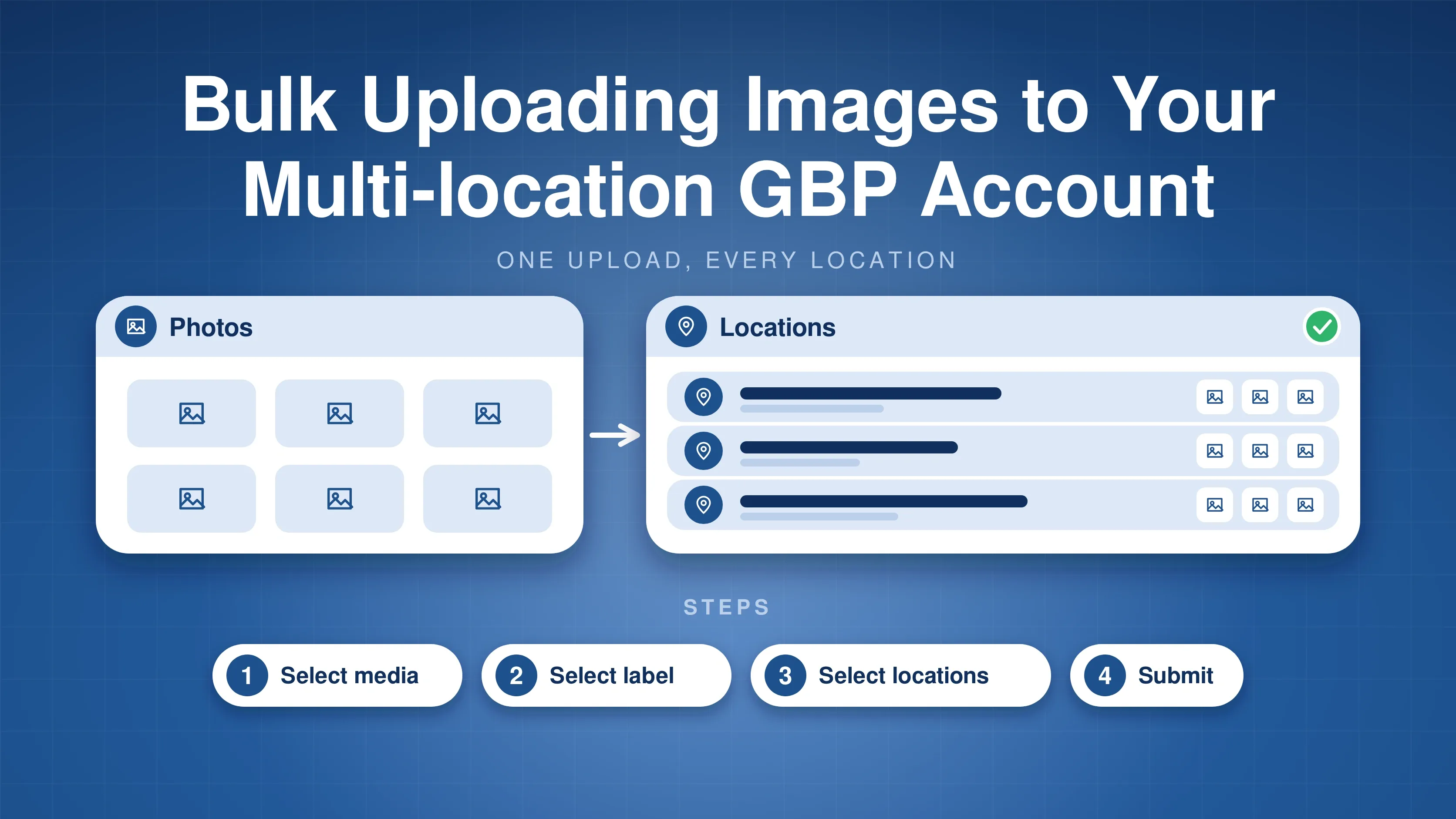
Read more about bulk uploading images to GMB and image management.
GMBapi - Multi-Location Local SEO Solution
With GMBapi, you unlock the seamless management, control, and optimisation of all your listings through a single, unified tool. This robust platform empowers you to extract invaluable keywords, manage reviews, and engage with Q&A interactions effortlessly, saving you precious time and resources. By leveraging these capabilities, you can significantly enhance your local search visibility and overall discoverability.
Embark on your journey today by initiating a free trial account with GMBapi. Begin maximising your local SEO potential and driving impactful results for your business.